How to Generate Documents From Google Sheets and Export to Drive
Connect Google Sheets to import data for bulk document generation. Export finished PDFs directly to Google Drive. No CSV exports, no file juggling.
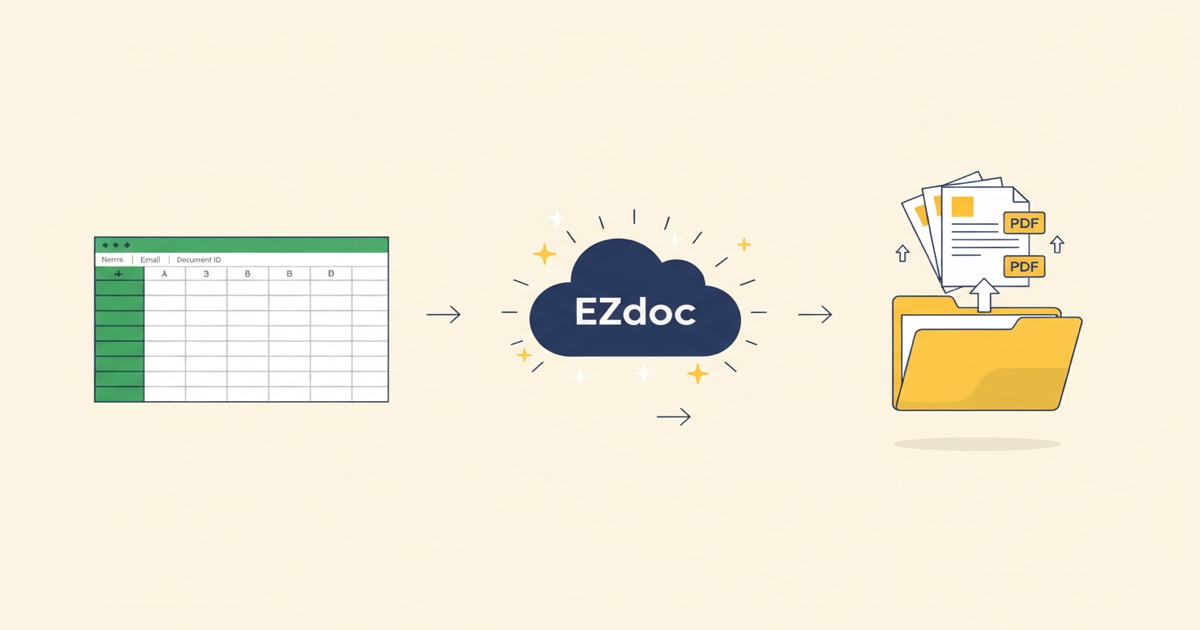
How to Generate Documents From Google Sheets and Export to Google Drive
You already have your data in Google Sheets. Client lists, employee rosters, invoice line items, event registrations. It's all there, organized and ready to go.
So why are you exporting to CSV, uploading it to a document tool, downloading a ZIP of PDFs, and then dragging those files into Google Drive? That's four steps that shouldn't exist.
Now they don't. EZdoc connects directly to Google Sheets and Google Drive. Pull your data in, generate your documents, and send them straight to a Drive folder. No exports. No downloads. No file juggling.
How Do You Connect Google Sheets?
One time. About 30 seconds.
Go to your EZdoc Settings page and click Connect Google Account. You'll see the standard Google authorization screen. Grant access to Sheets and Drive, and you're done.
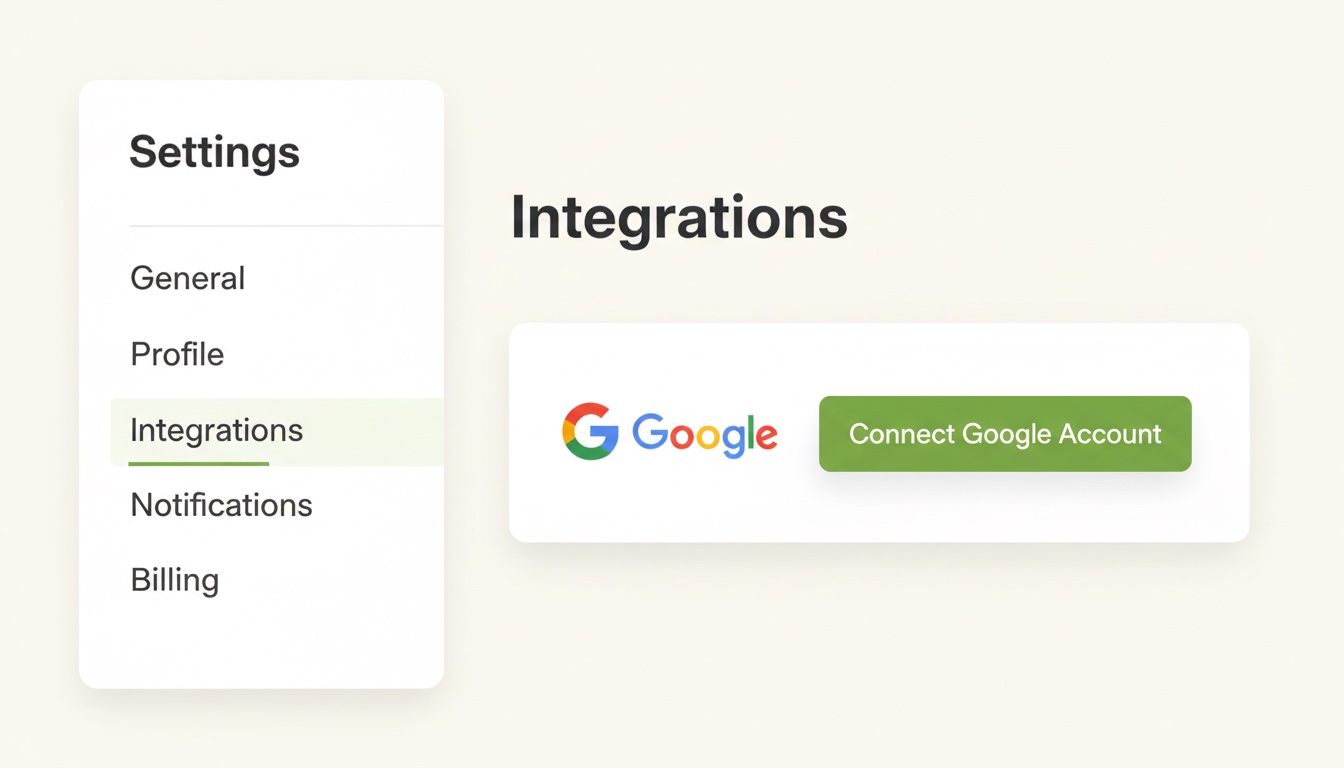
EZdoc only requests access to read your spreadsheets and write files to Drive. We don't touch your email, calendar, or anything else. You can revoke access from your Google account at any time.
How Do You Import Data From a Spreadsheet?
Go to Bulk Generate. Instead of uploading a CSV, click the Google Sheets tab.
You'll see a list of your recent spreadsheets. Pick one. If the spreadsheet has multiple tabs, pick the tab you want. Your data loads instantly, right in the browser. No export, no download, no file format issues.
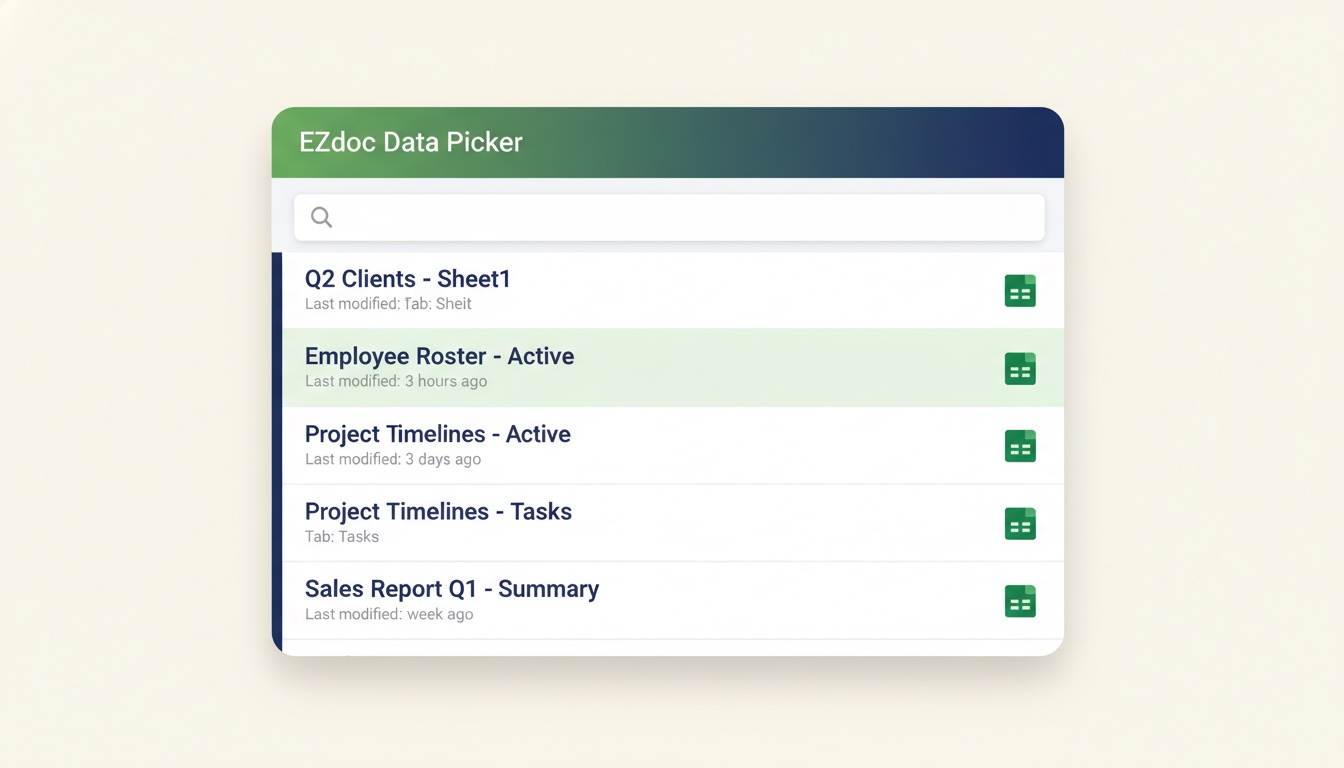
EZdoc reads your column headers the same way it reads CSV headers. If your sheet has columns like employee_name, position, start_date, and salary, those become the merge fields for your template. Everything works exactly the same as a CSV upload, just without the CSV.
How Do You Generate the Documents?
The same way you always do. Preview your data to make sure it looks right. Select your template. Click Generate.
EZdoc processes each row into its own PDF. One row, one document. A hundred rows, a hundred documents. The output is identical whether your data came from a CSV file or a Google Sheet.
If you don't have a template yet, use the AI Builder to create one. Upload your sheet, and EZdoc's AI designs a professional template around your actual column headers. Save it, then bulk generate from the same data.
How Do You Export Directly to Google Drive?
On the Bulk Generate page, toggle Send to Google Drive. Pick a destination folder, or let EZdoc create a new one.
When processing finishes, your PDFs land directly in that Drive folder. No ZIP download. No manual upload. You get a link to the folder so you can share it with your team, your clients, or whoever needs those documents.
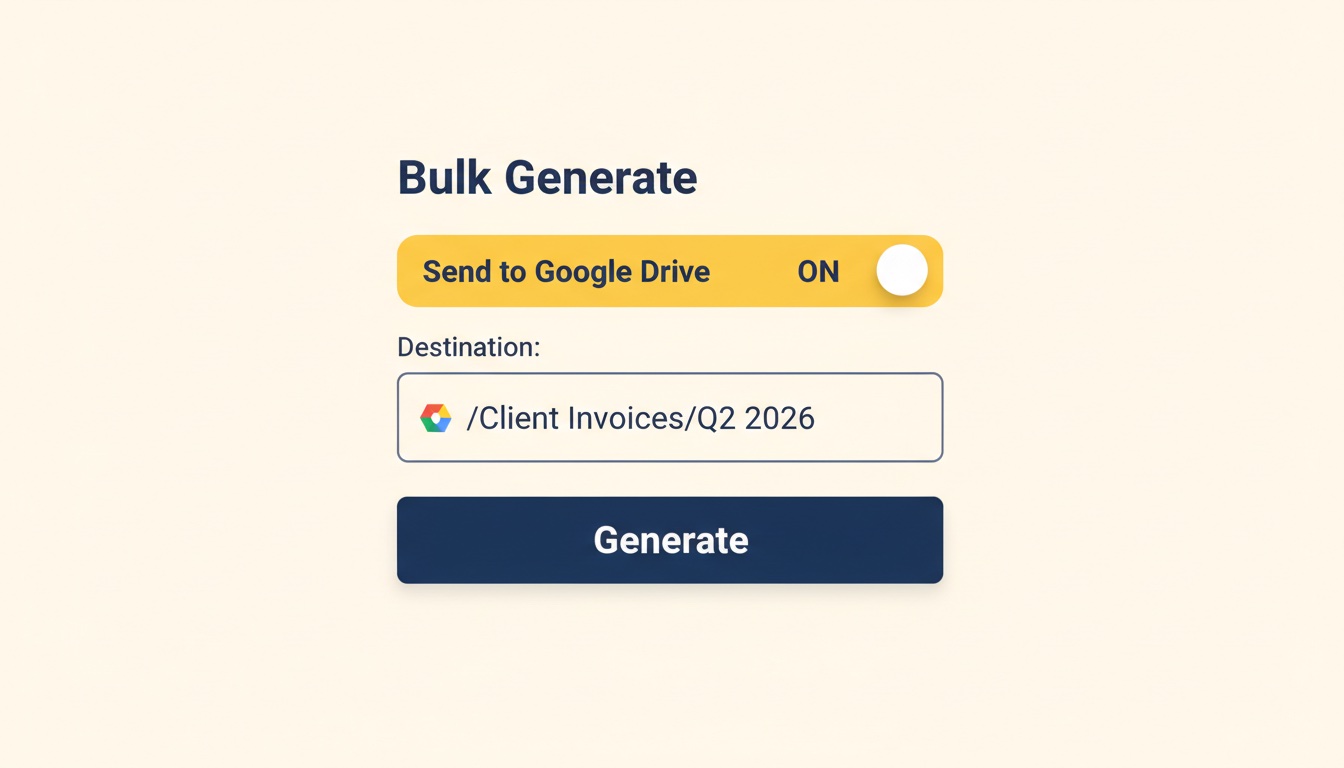
This pairs well with the email delivery feature. Add an _email_to column to your sheet, and EZdoc sends each PDF to the right person AND saves a copy to Drive. Two deliveries, one click.
What Are People Using This For?
The pattern is simple: data lives in Sheets, documents need to exist somewhere else.
HR teams keep employee rosters in Sheets. Connect it to EZdoc and generate offer letters, onboarding packets, or policy acknowledgments. Export to a shared Drive folder so hiring managers can access them immediately.
Freelancers and agencies track clients and billing in Sheets. Generate invoices monthly without ever touching a CSV export. PDFs go straight to a "Client Invoices" folder in Drive.
Event organizers collect registrations in Google Forms, which feed into Sheets automatically. Generate personalized certificates or badges for every attendee. Done before the event starts.
Schools and training programs maintain student records in Sheets. Generate transcripts, completion certificates, or report cards. Export to Drive for administrators to review and distribute.
Sales teams manage prospect lists in Sheets. Generate personalized proposals or one-pagers for each lead. Drop them in a shared Drive folder for reps to grab before meetings.
The Complete Workflow
Here's what the full loop looks like:
- Google Sheets holds your data (clients, employees, students, whatever)
- EZdoc pulls the data in, merges it with your template, and generates PDFs
- Google Drive receives the finished documents in the folder you picked
No CSV exports. No ZIP downloads. No dragging files between tabs. Your data starts in Google, your documents end up in Google, and EZdoc handles everything in between.
The template is reusable. Next month, when your sheet has new rows, you run the same workflow. Same template, fresh data, new documents. Two clicks.
Try It
- Sign up free - 25 pages/month, no credit card
- Go to Settings and connect your Google account
- Go to Bulk Generate, pick a Google Sheet, select your template
- Toggle Drive delivery if you want PDFs in a folder
- Click Generate
The free tier gives you enough to test the full Sheets-to-Drive workflow. Paid plans start at $19/month for 1,000 pages with every feature included.
Get started with Google Sheets integration
-- Jason