Turn HubSpot Contacts and Deals Into Professional Documents
Connect HubSpot to EZdoc and generate proposals, invoices, and contracts directly from your CRM contacts, deals, and company data. No exports needed.
Turn HubSpot Contacts and Deals Into Professional Documents
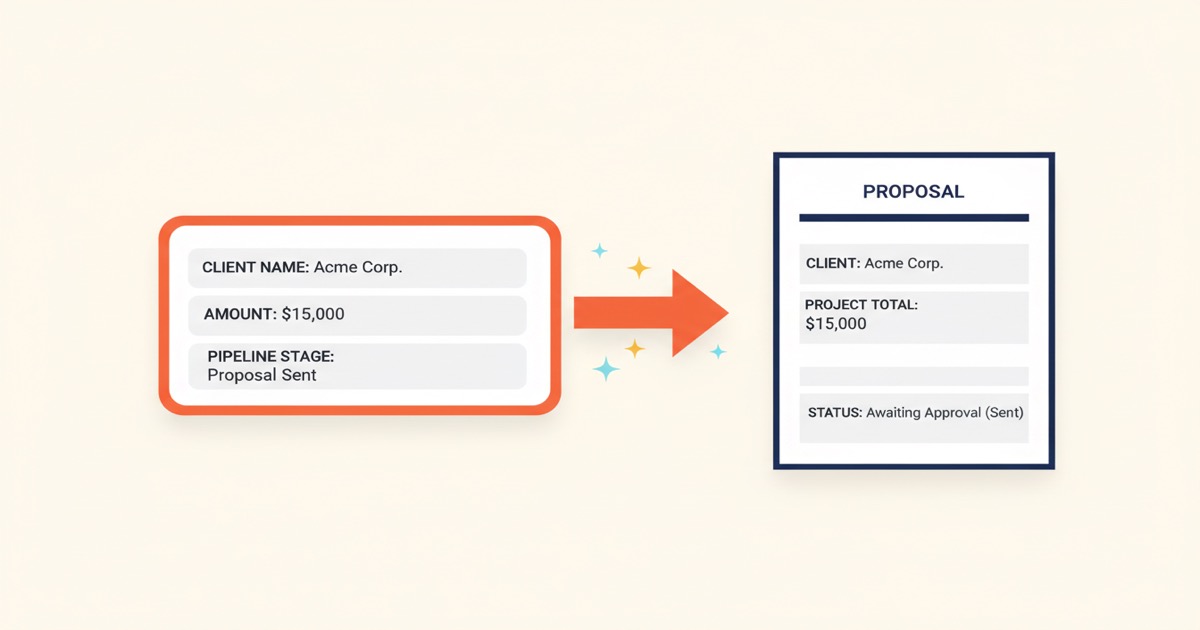
Your CRM has everything. Client names, deal amounts, contact details, company info. It's all sitting right there in HubSpot, organized and up to date. But when you need to create a proposal, an invoice, or a contract, you open a Word doc and start copy-pasting. Field by field. Record by record.
That gap between your data and your documents just closed. EZdoc connects directly to HubSpot. Pull contacts, deals, or companies into a template and generate polished PDFs without touching a spreadsheet.
How Do You Connect HubSpot?
Two clicks. Go to your EZdoc Settings page. Click Connect HubSpot. You'll see the standard HubSpot authorization screen. Grant access, and you're done.
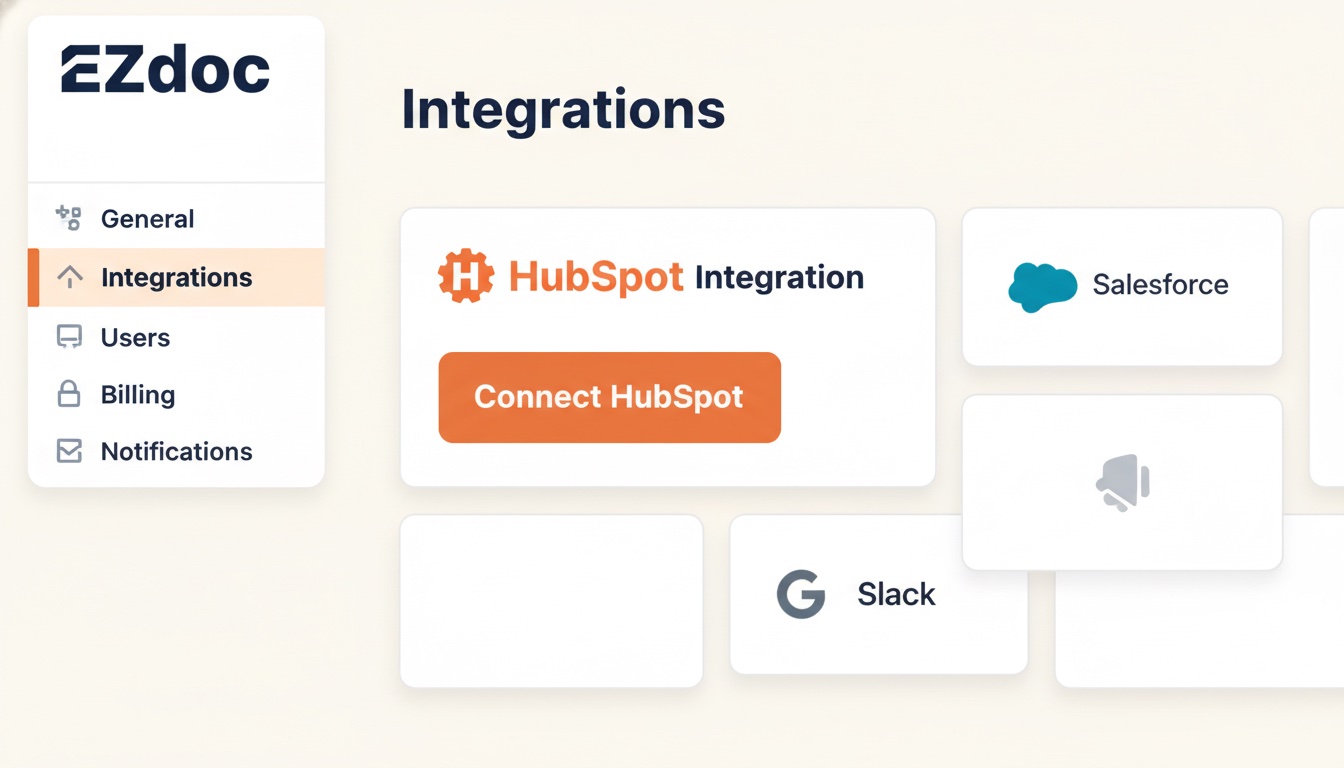
EZdoc requests read access to your contacts, deals, and companies. We don't modify your CRM data. You can revoke access from your HubSpot account settings at any time.
How Do You Pull Contacts, Deals, or Companies?
Go to Bulk Generate. Instead of uploading a CSV, click the HubSpot tab.
You'll see three object types: Contacts, Deals, and Companies. Pick one. Your records load directly in the browser. You can filter by list, pipeline stage, or date range to narrow down exactly which records you need.
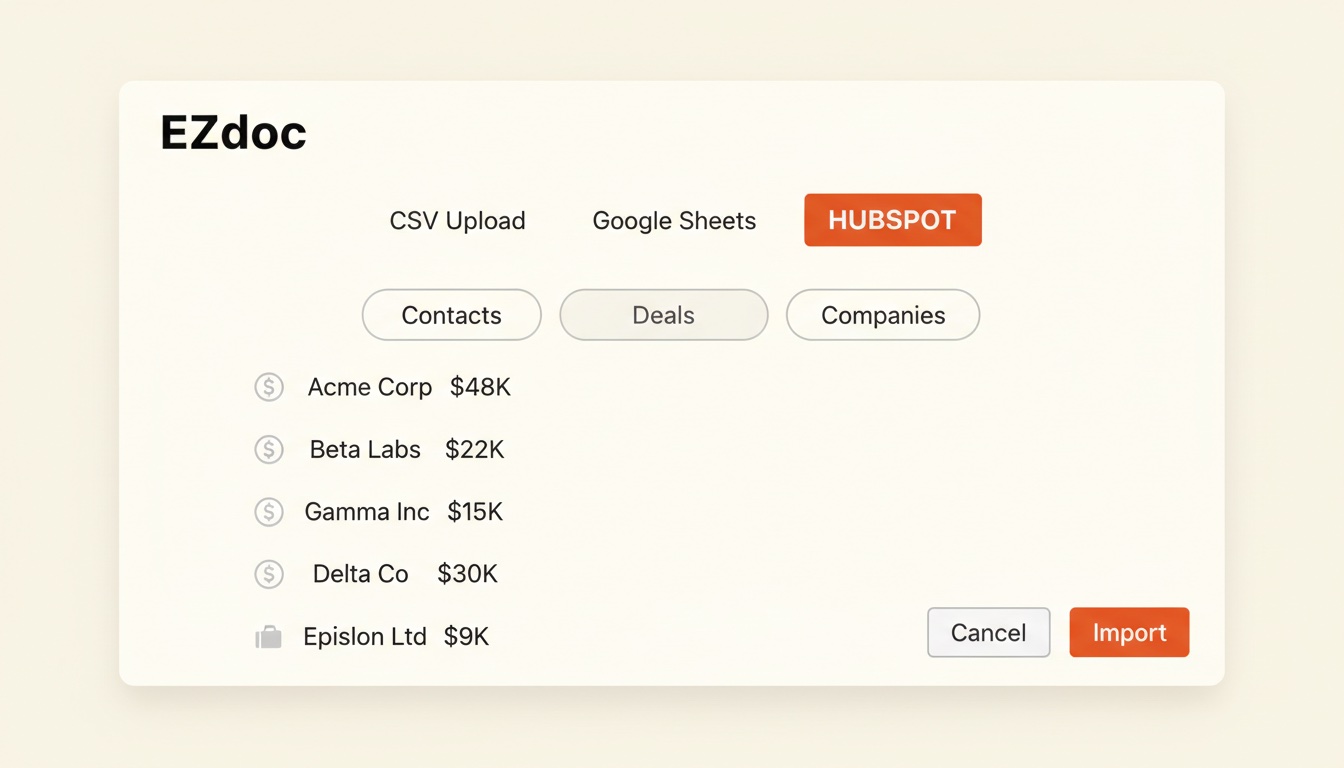
EZdoc reads HubSpot property names the same way it reads CSV column headers. If your deals have dealname, amount, closedate, and pipeline, those become the merge fields for your template. Everything works the same as a CSV upload, just without the export step.
What Can You Generate?
The document type depends on which HubSpot object you pull from. Here are the patterns we see most.
From Contacts:
- Personalized letters and outreach
- Onboarding packets for new clients
- Certificates and acknowledgments
- Welcome kits with contact-specific details
From Deals:
- Proposals with deal values and terms
- Invoices tied to deal amounts
- Contracts with deal-specific line items
- Closing documents and order confirmations
From Companies:
- Account summaries and business reviews
- Custom brochures with company details
- Quarterly reports per account
- Partnership agreements
The template handles the formatting. HubSpot provides the data. EZdoc connects the two.
A Real Example: 50 Proposals in 2 Minutes
Say you have 50 deals closing this month. Each one needs a proposal with the prospect's name, company, deal value, and scope of work. Normally, that's your afternoon gone.
Here's what it looks like with HubSpot connected:
- Go to Bulk Generate and click the HubSpot tab
- Select Deals and filter to "Closing This Month"
- Pick your proposal template (or create one with the AI Builder in 30 seconds)
- Click Generate
Fifty personalized proposals. Each one with the correct deal name, contact info, dollar amount, and closing date pulled straight from your pipeline. Download the ZIP or toggle email delivery to send each proposal to the right contact automatically.
No spreadsheet export. No copy-paste. No checking if you typed the right number on the right proposal.
Why Does This Matter? No More Copy-Paste.
The data stays in sync with HubSpot. When your sales rep updates a deal amount, the next document you generate reflects that change. You're not working from a stale CSV export that was accurate three days ago.
Every HubSpot property maps directly to your template placeholders. {{ dealname }} pulls the deal name. {{ amount }} pulls the deal value. {{ contact_email }} pulls the associated contact's email. What's in your CRM is exactly what shows up on the document.
This also eliminates an entire class of errors. Wrong client name on a proposal? Outdated pricing on an invoice? Those mistakes happen when you're copying data by hand. They don't happen when the data flows directly from the source.
Get Started
- Sign up free -- 25 pages/month, no credit card
- Go to Settings and connect your HubSpot account
- Go to Bulk Generate, click the HubSpot tab, select your records
- Pick a template or create one with the AI Builder
- Click Generate
The free tier gives you enough to test the full workflow with real HubSpot data. Paid plans start at $19/month for 1,000 pages with every feature included.
Connect your HubSpot account at ezdoc.app/settings
-- Jason