How to make an old PDF editable again (without retyping it)
Convert a locked PDF into an editable document: what OCR tools get wrong, and how AI recreation gives you a design you can actually keep updating.
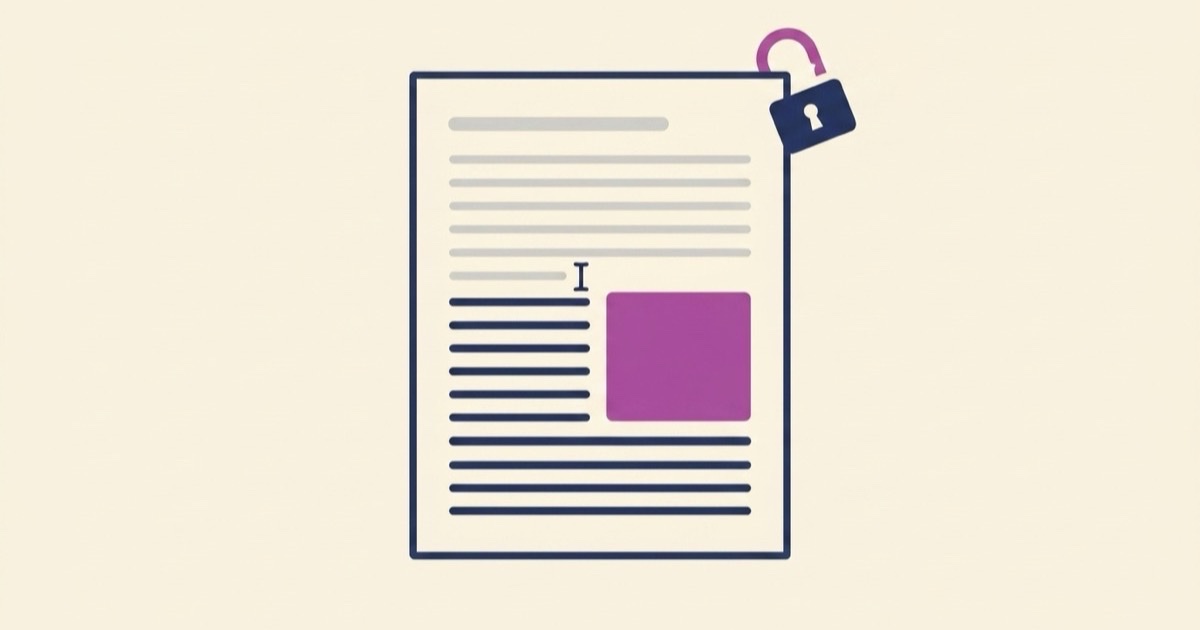
A PDF is a snapshot of a document, not the document itself. That's fine until a price changes or a policy updates and you discover nobody has the source file anymore.
Key takeaways
- There are three real ways to make a PDF editable: retype it, run it through an OCR converter, or have AI recreate it as a new editable document.
- OCR-to-Word is good at reading characters and bad at rebuilding design — expect stacked text boxes and substituted fonts on anything with a layout.
- AI recreation keeps your text faithful and gives you a modern design you can keep editing. Upload at /import.
- Recreation is a redesign, not a pixel clone — and scans of handwriting are a bad fit.
- Once recreated, editing the document by hand is free, on every plan.
The three ways, and when each one wins
Retype it. Open a blank document and copy everything over by hand. Verdict: reliable and tedious — only worth it for a short document you'll never touch again.
OCR-convert it. Run the PDF through a PDF-to-Word converter that extracts the text and attempts to rebuild the file. Verdict: works well for plain, text-heavy pages; falls apart on anything designed.
AI-recreate it. Upload the PDF and have AI regenerate it as a brand-new editable document that carries your original text. Verdict: the best fit when the document needs to keep living — updated next quarter, restyled next year.
The rest of this guide covers why the middle route disappoints so often, and how the third one works.
Why OCR-to-Word struggles with designed documents
To be fair to OCR: modern converters read typed text with very high accuracy. The failure isn't in the reading — it's in the reconstruction.
A converter has to guess a document's structure from pixel positions. That guessing produces predictable damage:
- Layout soup. Columns, sidebars, and headers arrive as dozens of independent text boxes, each absolutely positioned. Add one sentence and the boxes overlap instead of reflowing.
- Invisible scaffolding. Spacing gets faked with hidden tables and manual line breaks. The page looks right until you touch it, then something shifts.
- Broken fonts. The original typeface usually isn't installed on your machine, so everything gets substituted with the nearest match. Line lengths change, and the whole document reads slightly off.
- Rasterized leftovers. Backgrounds, seals, and decorative elements come through as flattened images you can't edit at all.
None of this is a knock on any particular tool. It's the nature of the task: a PDF stores where ink goes on a page, not why, and the more designed the document, the more gets lost in translation.
So for an invoice, a certificate, a price sheet, a flyer — anything where the design matters — converting the file gets you an editable mess. You spend the afternoon repairing the layout instead of updating the content.
The recreate route: same text, new source file
We built Recreate around a different idea. Instead of trying to salvage the old file, treat the text as the thing worth keeping and generate a fresh document around it.
Here's what happens when you upload a PDF:
- EZdoc reads it and identifies it. It works out what the document is — an invoice, a resume, a waiver, a certificate — and pre-selects the type. You confirm or correct the guess.
- You choose the fidelity. Keep my text exactly reproduces your wording one-to-one. Polish the wording tightens phrasing and fixes grammar. In both modes, the facts — names, dates, numbers, amounts, addresses — are locked and never altered.
- It regenerates as a modern design. The new version streams onto the screen as it's written. What comes back is a clean, well-designed document built on a real structure, not a patchwork of text boxes.
- You edit it forever. The result opens in the visual document editor. Click any element — a heading, a price, a paragraph — and change it directly. Manual edits are always free, on every plan.
- For bigger changes, ask AI. Type what you want in the editor's Ask AI panel — "add a second pricing tier" or "make the header match our navy" — and it applies a targeted edit. Manual edits are always free; the first AI edit costs 1 credit and unlocks 3 free AI edits for the next 5 minutes, then the next AI edit costs 1 credit again.
- Download a clean PDF. When it's right, export it — and next time it needs updating, you edit the living document instead of hunting for a source file.
The difference from OCR conversion is structural. A converter hands you the old layout in a fragile new wrapper. Recreation hands you a new document that happens to contain your old text — so future edits behave the way edits should.
The honest boundary
Recreation is faithful to your text, not your pixels. You get your content in a fresh design — usually better-looking than the original — but not a line-for-line copy of the old layout. We tried building exact layout cloning first, and the results weren't good enough to ship.
Two cases where this route is the wrong tool:
- You need the original layout untouched. If the document must look byte-for-byte identical — a signed contract, a form with a mandated layout — use a PDF editor that annotates the original file instead.
- Your scan is handwritten. Recreation works from readable typed text. A scanned form filled out in pen, or handwritten notes, won't extract cleanly and will produce a bad result.
For everything else — the dated price sheet, the manual nobody can open — recreation gives you a document instead of a repair job.
Step-by-step walkthrough
- Go to /import, or open the Studio and choose Recreate.
- Drop in your PDF. If your document is trapped in another format, print it to PDF first and upload that.
- Confirm the document type EZdoc identified, or pick a different one.
- Choose Keep my text exactly or Polish the wording.
- Watch the new version generate, then check it over. Your names, numbers, and dates carry through unchanged.
- Fix anything yourself in the editor for free, or ask AI for larger changes.
- Download the finished PDF — and keep the editable version for next time.
FAQ
Can I convert a PDF to an editable document without retyping it?
Yes. Upload it at /import and EZdoc regenerates it as an editable document carrying your original text. Nothing gets retyped, and the facts are locked so they can't drift.
Will the result look exactly like my original PDF?
No — and that's deliberate. It will read like your original and look like a well-designed modern version of it. If you need the exact original layout preserved, a PDF editor is the better tool.
What about scanned documents?
Scans of typed text generally work. Scans with handwriting don't — the text can't be extracted reliably, so recreation isn't a good fit there.
Got a PDF nobody can edit? Upload it and get back a document →