How to Generate 1,000 Personalized PDFs from a CSV in Under 5 Minutes
Step-by-step: turn a CSV and a Word template into 1,000 personalized PDFs in under 5 minutes. Supports conditionals and loops. Free for 25 pages.
Editor's note (June 2026): EZdoc has changed since this was published. You no longer upload Word/
.docxtemplates — you generate a template in EZdoc and it renders natively on our Liquid engine (we retired the old Jinja2/docxtplpath). See what changed →
A friend of mine runs a small freelance design studio. At the end of every month, she sits down and manually builds invoices for her clients — opening a Word doc, copying line items from a spreadsheet, changing the client name, saving as PDF, attaching to an email. Twenty-plus clients. Different project line items for each one. Hours of her Sunday evening, every single month.
She's not alone. Most small business owners end up doing some version of this: copy-paste work that a template and a spreadsheet should be able to handle automatically. The fix isn't complicated — it's just one Word template, one CSV, and the right tool in between. That's what this tutorial walks through.
Key Takeaways
- Upload any Word document as a template, add {{ placeholders }} where data should go
- Match your CSV column headers to your placeholder names, then generate
- Conditional logic and loops work inside your templates for invoices with line items
- Free tier includes 25 pages/month with no credit card required
Who is this for?
According to a McKinsey Global Institute study (2023), knowledge workers spend roughly 19% of their time searching for and gathering information, with a significant chunk spent on repetitive document tasks. If you've ever copied names into a Word file one row at a time, you know the pain.
This guide is for freelancers, small business owners, nonprofits, and operations teams who create the same type of document over and over with different details each time. Invoices, contracts, certificates, offer letters, donation receipts. Anything you currently build by hand in Word or Google Docs.
You don't need to know how to code. You don't need an API. You just need a Word file and a spreadsheet.
What are Jinja2 placeholders (and why should you care)?
Jinja2 is the templating language used by over 350,000 projects on GitHub, according to GitHub's own dependency data (2024). It's the same engine behind tools like Ansible, Flask, and Salt. In plain terms, it lets you put smart placeholders inside a regular Word document.
The simplest version looks like this:
Dear {{ client_name }},

Your invoice #{{ invoice_number }} for {{ amount }} is due on {{ due_date }}.
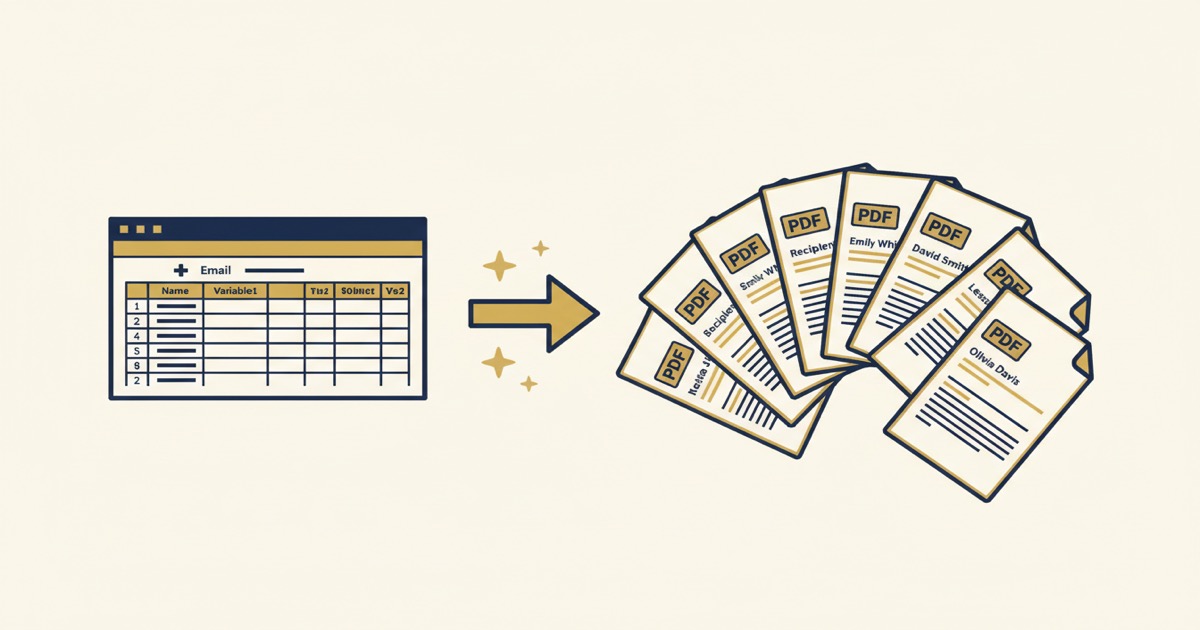
Each {{ }} tag maps to a column in your spreadsheet. When EZdoc processes the file, it replaces every placeholder with the matching value from each row.
But Jinja2 goes further than basic find-and-replace. You can use:
- Conditionals to show or hide sections:
{% if payment_status == "overdue" %}PAST DUE{% endif %} - Loops for line items:
{% for item in items %}{{ item.description }} - {{ item.price }}{% endfor %} - Filters to format data:
{{ amount | currency }}or{{ name | upper }}
That means a single invoice template can handle one-line-item orders and twenty-line-item orders. One contract template can include an NDA clause for some clients and skip it for others. The template adapts to the data.
Step 1: How do you create a Word template?
Open Microsoft Word, Google Docs, or any editor that saves to .docx format. Design your document exactly the way you want the finished PDF to look: headers, logos, formatting, tables, everything.
Then replace the parts that change per recipient with {{ placeholder_name }} tags.
Simple example (flat fields, one row per document):
Dear {{ client_name }},

Your invoice is ready.

Amount: {{ amount }}
Due: {{ due_date }}

Thanks,
Your Friend
This is fine when every document has the same shape. But real invoices usually have a variable number of line items — some clients get billed for two things, others for fifteen. That's where a for loop earns its keep.
Real-world example (invoice with a line items table):
INVOICE #{{ invoice_number }}

Bill to: {{ client_name }}
Date: {{ invoice_date }}
Due: {{ due_date }}

Description              Qty    Rate       Subtotal
{% for item in line_items %}
{{ item.description }}   {{ item.qty }}   {{ item.rate }}   {{ item.subtotal }}
{% endfor %}

Total: {{ total }}
Look at the {% for item in line_items %} block. That's a loop. It tells EZdoc: "for each entry in the line_items list, repeat this row." Your design studio friend's September invoice for Acme Corp might have 3 line items. Her invoice for Beta LLC might have 12. The same template handles both — you don't need to build a new template for every invoice length.
When the loop runs, Jinja2 replaces the whole block with one row per item and keeps your table's formatting, fonts, and borders intact. In Word, you'd put the {% for %} and {% endfor %} tags inside a single table row, and EZdoc will duplicate that row for each item.
A few practical tips:
- Name your placeholders clearly. Use
{{ client_name }}instead of{{ cn }}. Your CSV column headers need to match exactly, so clarity saves debugging later. - Keep formatting on the placeholder text. If you bold
{{ client_name }}, the merged value will be bold too. Formatting carries over. - Already use Google Docs? Export your document as .docx (File > Download > Microsoft Word). Formatting is preserved. No rebuilding required.
The most common template error we see is a simple typo in a placeholder name. If {{ client_name }} in your template is {{ clientname }} in your CSV header, it won't merge. Double-check spelling before you run a big batch.
Step 2: How should you prepare your CSV?
Your spreadsheet is the data source. Each row becomes one document. Each column header must match a placeholder name in your template.
For flat templates (no loops), your CSV is simple. One row per invoice, one column per placeholder:
| client_name | invoice_number | invoice_date | due_date | amount |
|---|---|---|---|---|
| Acme Corp | INV-001 | 2026-04-01 | 2026-05-01 | $1,500 |
| Beta LLC | INV-002 | 2026-04-01 | 2026-05-01 | $1,000 |
| Gamma Inc | INV-003 | 2026-04-01 | 2026-05-01 | $3,500 |
For templates with loops, you need a way to tell EZdoc that a column contains a list, not a single value. The easiest pattern is JSON inside a cell. One row still represents one invoice, but the line_items column holds the full array of items for that invoice:
| client_name | invoice_number | invoice_date | due_date | line_items | total |
|---|---|---|---|---|---|
| Acme Corp | INV-001 | 2026-04-01 | 2026-05-01 | [{"description":"Logo design","qty":1,"rate":"$800","subtotal":"$800"},{"description":"Brand guide","qty":1,"rate":"$400","subtotal":"$400"}] |
$1,200 |
| Beta LLC | INV-002 | 2026-04-01 | 2026-05-01 | [{"description":"Website copy","qty":4,"rate":"$150","subtotal":"$600"},{"description":"SEO audit","qty":1,"rate":"$350","subtotal":"$350"},{"description":"Revisions","qty":2,"rate":"$75","subtotal":"$150"}] |
$1,100 |
Each entry in the line_items array has fields that match what the template loop references: item.description, item.qty, item.rate, item.subtotal. When EZdoc generates Acme Corp's invoice, the loop runs twice (two line items). For Beta LLC, it runs three times. Same template, different number of rows in the output table.
If you're building this in Google Sheets, you can use a helper tab to construct the JSON per row, or paste it in directly from whatever system stores the project details. The data shape is what matters, not where it came from.
Key rules:
- Column headers must match your placeholder names exactly (case-sensitive)
- One row per document
- For loop data, use valid JSON arrays in a single cell
- Both CSV and XLSX files work
- No row limit on upload; your plan's page limit determines how many generate
According to a Census Bureau Annual Business Survey (2023), there are roughly 33.2 million small businesses in the United States. Most of them already have their client data in a spreadsheet somewhere. That spreadsheet is your data source.
A practical tip from running hundreds of test batches: the slowest part of this whole process is almost always cleaning up your spreadsheet, not running the merge. Spend five minutes scanning for blank cells, inconsistent formatting, and duplicate rows before uploading. It saves real headaches.
Step 3: How do you upload and generate?
Here's the actual workflow inside EZdoc. It takes about 90 seconds once your files are ready.
Upload your template
Go to ezdoc.app and sign in (or create a free account). Click "New Template" and upload your .docx file. EZdoc scans it immediately and lists every placeholder it finds. This is a quick sanity check: if a placeholder is misspelled, you'll see it here before generating anything.
Upload your spreadsheet
Click "New Merge Job," select your template, and upload your CSV or XLSX file. EZdoc maps your column headers to the template's placeholders automatically. You'll see a preview showing which columns match which tags.
If a column header doesn't match a placeholder, you'll get a warning. Fix it in your spreadsheet, re-upload, and you're back on track.
Click Generate
Hit the Generate button and watch the progress bar. EZdoc processes each row in your spreadsheet, fills the template, converts it to PDF, and packages everything into a ZIP file. You'll see real-time status updates as each document completes.
Download your PDFs
When the batch finishes, click "Download ZIP." Every PDF is named using values from your spreadsheet, so you get organized files like INV-001_Acme_Corp.pdf instead of document_1.pdf.
The entire cycle, upload template, upload CSV, generate, download, takes under five minutes for 1,000 documents. Most of that time is the actual PDF conversion running on the server.
What can you build with conditional templates?
This is where things get interesting. A Deloitte report (2023) found that document-intensive processes account for 30-40% of administrative labor costs across industries. Templates with built-in logic can cut that dramatically.
Conditional sections let one template handle multiple scenarios:
{% if payment_terms == "net-30" %}
Payment is due within 30 days of the invoice date.
{% elif payment_terms == "net-60" %}
Payment is due within 60 days of the invoice date.
{% else %}
Payment is due upon receipt.
{% endif %}
Loops handle variable-length content:
{% for item in line_items %}
{{ item.description }}    {{ item.quantity }}    {{ item.unit_price }}
{% endfor %}
Filters format raw data on the fly:
Total: {{ amount | currency }}
Date: {{ created_at | date("MMMM D, YYYY") }}
Client: {{ company_name | upper }}
With these three features, a single template can replace dozens of manually maintained document variants. One invoice template serves your net-30 clients, net-60 clients, and immediate-payment clients.
Most mail merge tools stop at basic text replacement. They can swap {{ name }} for "John Smith," but they can't conditionally include a paragraph, loop through a table of line items, or format a number as currency. That's the gap between a merge tool and a template engine. The difference matters when your documents need to look professional regardless of how many line items, clauses, or conditions each one contains.
How does this compare to traditional mail merge?
A Zapier survey of knowledge workers (2024) found that 76% of workers use automation tools to handle repetitive tasks, yet document generation remains one of the last manual holdouts. Traditional mail merge in Word gets you halfway there. But it has real limitations.
| Feature | Word Mail Merge | CraftMyPDF | EZdoc |
|---|---|---|---|
| Uses your existing Word templates | Yes | No (visual editor) | Yes |
| Conditional logic (IF/THEN) | Limited | Yes | Yes (full Jinja2) |
| Loops for line items | No | Yes | Yes |
| PDF output | Manual save | Yes | Yes |
| Batch processing (1,000+ docs) | Painful | Yes | Yes |
| Requires code | No | No | No |
| Free tier available | N/A | Limited | 25 pages/month |
Unlike CraftMyPDF, which requires rebuilding your templates in a proprietary visual editor, EZdoc uses your existing Word files. Upload the .docx you already have. If you use Google Docs, just export as .docx, formatting preserved, and upload that. (I wrote a full comparison between EZdoc and CraftMyPDF if you want the long version.)
Unlike traditional Word mail merge, you get real conditional logic, loops, and filters. And you get actual PDFs in a ZIP file, not a long Word document you have to split and convert by hand.
What are the common use cases?
Based on the templates EZdoc users create most often, here are the document types where this workflow really pays off:
- Invoices and billing statements. Variable line items, payment terms, and totals. Loops and conditionals handle the variation.
- Contracts and agreements. Swap in client names, dates, scope of work, and optional clauses based on deal type.
- Certificates. Training completion, awards, participation. Usually simple templates with name, date, and course title.
- Offer letters. Candidate name, role, salary, start date, benefits package. Conditionals for different employment types.
- Donation receipts. Donor name, amount, date, tax ID. Nonprofits generate these in batches at year-end.
- Reports and statements. Monthly client reports with personalized data per account.
The freelance design studio example from the top of this post is the common thread: someone who's generating the same document type over and over, tweaking a few values each time, and burning hours they could spend on actual billable work. A Word template plus a CSV collapses that whole process into a single upload.
FAQ
How many documents can I generate on the free plan?
The free plan includes 25 pages per month and 3 templates with no credit card required. That's enough to test your workflow end-to-end before upgrading. Paid plans start at $19/month for 1,000 pages, with every feature included — no feature-gated tiers. I wrote a separate post on why we killed feature-gated pricing if you're curious about the reasoning.
Do I need to know how to code?
No. The entire workflow runs through the web interface: upload a Word template, upload a CSV, click Generate. Jinja2 placeholders look like {{ client_name }}, which is about as technical as it gets. If you can use a spreadsheet, you can use this.
What file formats does EZdoc accept?
Templates must be .docx files (Microsoft Word format). Google Docs users can export as .docx with formatting preserved. Data files can be CSV or XLSX format. Output is always PDF, delivered as a ZIP file containing one PDF per row.
How long does generation actually take?
Processing speed depends on document complexity, but a batch of 1,000 single-page invoices typically completes in 2-4 minutes. Multi-page documents with images take longer. You'll see real-time progress as each document finishes.
Can I use Google Docs instead of Microsoft Word?
Yes. Open your Google Doc, go to File > Download > Microsoft Word (.docx). Upload that file as your template. EZdoc processes .docx files regardless of which editor created them, and formatting carries over cleanly.
Start generating in the next five minutes
Here's the short version. Create a Word template with {{ placeholder }} tags. Prepare a CSV where column headers match those tags. Upload both to EZdoc. Click Generate. Download your ZIP.
The free tier gives you 25 pages per month to test the full workflow, including conditional logic, loops, and filters. No credit card. No time limit.
If you're spending hours copying data into documents by hand, those hours are recoverable. A spreadsheet and a template can do it in minutes.
- Jason