How to Make a Professional Flyer in 2026 (No Design Skills Needed)
Three ways to make a professional flyer in 2026: DIY in Canva, hire a designer, or let AI do it in 30 seconds. No design skills required.
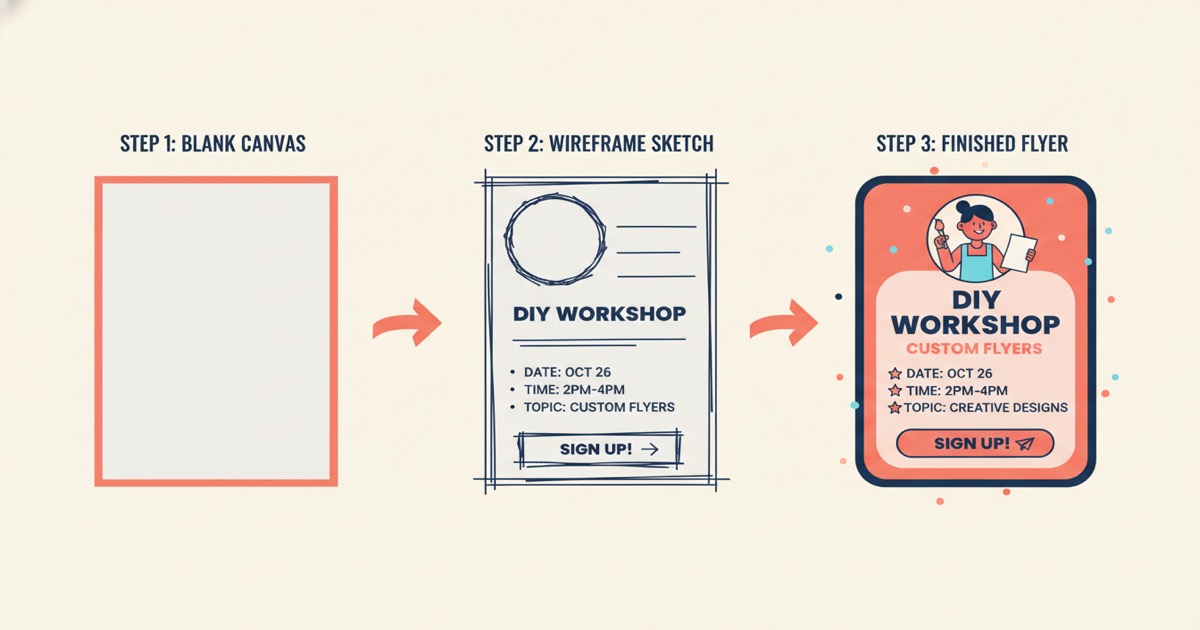
Last month a friend asked me to help her make a flyer for a neighborhood cleanup event. She'd been working on it in Google Docs for 45 minutes. It had three different fonts, a clip art broom, and a text box that kept jumping to the wrong spot every time she added a line.
She's not a designer. She's an environmental science teacher organizing a community event. But somewhere along the way, "making a flyer" became something that requires design software, YouTube tutorials, and an hour of your Saturday.
It shouldn't be that hard. Here's how to make a professional flyer in 2026, whether you want to do it yourself, hire someone, or let AI do the heavy lifting.
Key Takeaways
- Great flyers follow three rules: one clear headline, one call to action, and plenty of whitespace
- Three approaches: DIY tools like Word or Canva, hire a designer, or use AI
- AI generation is almost instant and costs nothing to try
- Browse real AI-generated flyer examples at /ai-examples/flyer
What Makes a Flyer Actually Work?
Before you open any tool, it helps to know what separates a flyer people read from one they ignore. You don't need a design degree. You need four principles.
One headline. Not three. Not a headline and a subheadline and a tagline. One clear statement that tells people what this is about. "Spring Clean-Up: Saturday, May 3rd" works. "Join Us for Our Annual Spring Neighborhood Community Clean-Up Event!" does not.
One call to action. What do you want people to do after reading this? Show up? Call a number? Visit a website? Pick one. A flyer with three calls to action has zero calls to action, because nobody remembers any of them.
Whitespace. This is the one thing non-designers consistently get wrong. The impulse is to fill every inch of the page with information. Resist it. Empty space makes the important stuff stand out. If your flyer feels "empty," it probably looks great.
Hierarchy. Your reader's eye should move from the most important thing to the least important thing in a natural flow. Usually that means: headline at the top, key details in the middle, call to action at the bottom. If someone glances at your flyer for two seconds, they should get the main idea.
That's it. Those four principles matter more than which tool you use.
What Are Your Options for Making a Flyer?
You've got three realistic paths in 2026. Each one trades time for control in different ways.
Option 1: Do It Yourself in Word, Docs, or Canva
Time: 30-90 minutes. Cost: Free or $13/month for Canva Pro.
This is the default choice for most people, and it works fine if you enjoy the process. Word and Google Docs are technically capable of producing a flyer, but they're word processors pretending to be design tools. You'll fight with text boxes, alignment, and spacing.
Canva is a much better option for DIY. It has real design templates, drag-and-drop editing, and a library of graphics. The trade-off is time. In our experience, even comfortable users spend 20-30 minutes customizing a template. For someone less familiar with design tools, budget closer to an hour.
DIY makes sense when you need precise control over every element, or when the flyer is part of a larger brand system where you need exact color matching and logo placement.
Option 2: Hire a Designer
Time: 1-3 days. Cost: $50-200 on Fiverr, $500+ from an agency.
If your flyer is high-stakes (trade show booth, major product launch, fundraising gala), a professional designer is worth it. They'll nail the typography, color relationships, and layout proportions in ways that DIY tools can't match.
The downside is obvious: time and cost. Even a fast freelancer on Fiverr takes 24-48 hours. And you'll go through at least one round of revisions. For a Saturday farmers market sign or a neighborhood event notice, hiring a designer is overkill.
Option 3: Use AI
Time: Under a minute. Cost: Free to try.
This is the newest option and the one most people haven't tried yet. You describe your flyer in plain text in the AI flyer maker, and the AI designs the entire thing: layout, typography, colors, spacing, and visual hierarchy. Download the PDF and you're done.
Here's a real prompt that works:
"Flyer for a Saturday morning farmers market. Greenfield Community Market, every Saturday 8am-1pm through October, at the corner of Main and Oak Street. 30+ local vendors, live music, kids activities. Earthy green color palette, clean modern design. Include a mention that EBT/SNAP is accepted."
Moments later, you have a print-ready PDF. No template selection, no dragging elements around, no font pairing decisions.
The AI approach works best when you need something fast, when you're not a designer, or when the flyer is functional rather than brand-critical. It's not going to replace a creative director's vision for a national campaign. But for the vast majority of flyers that real people need to make, it's the fastest path to a professional result.
What Kind of Flyers Can You Make with AI?
The short answer: any kind you can describe. Here are some examples that work well:
- Event flyers (concerts, fundraisers, workshops, open houses)
- Class schedules (yoga studios, gyms, dance schools, tutoring centers)
- Sale announcements (retail, restaurant specials, seasonal promotions)
- Menus (restaurants, cafes, catering companies, food trucks)
- Community notices (neighborhood events, HOA announcements, library programs)
- Business promotions (grand openings, service offerings, seasonal deals)
- Educational flyers (school events, PTA meetings, after-school programs)
Browse real examples in our AI showcase to see what different prompts produce. Every example was generated from a text description, no design skills required.
We also have downloadable flyer templates in the template library if you prefer a starting point you can customize.
What Tips Will Make Your AI Flyer Better?
Whether you use AI or any other tool, these tips apply:
Be specific about what matters. "Flyer for a bakery" gets you something generic. "Grand opening flyer for a French bakery called La Petite, Saturday March 15th, free croissant with any purchase, blush pink and gold color scheme" gets you something you can actually use.
Include all the details. Don't make the AI guess. If you have a date, time, location, price, website, or phone number, include it. The more complete your description, the less editing you'll need afterward.
Mention a visual style. You don't need to know design terminology. "Bold and colorful," "clean and modern," "elegant with lots of whitespace," or "rustic farmhouse feel" all work. The AI translates your intent into design decisions.
Keep it focused. The same rule that applies to flyer design applies to your prompt: one main message. If you try to advertise your bakery, your catering service, your cooking classes, and your seasonal menu all on one flyer, the result will be cluttered.
FAQ
Can I print the flyer directly?
Yes. Every generated document is a print-ready PDF at standard letter size (8.5" x 11"). Send it straight to your home printer or upload it to a print service like FedEx Office or Vistaprint. No conversion, no exporting, no adjusting print margins.
What if I don't like the first result?
Use the refine feature to make changes with natural language. Say "make the headline bigger," "change the color scheme to blue and white," or "add a QR code placeholder at the bottom." Each refinement is quick.
How much does this cost?
The free tier includes 3 free AI generations (lifetime), no credit card required. If you need more, grab a credit pack -- they start at just $5 for 4 generations, no subscription needed. Monthly plans start at $19/month for regular users.
Can I make a flyer in a language other than English?
Yes. Describe your flyer in whatever language you want the output in. The AI generates content in the language you provide. Spanish, French, Portuguese, German, and many others all work.
What about social media sizes?
The AI Builder supports social media formats too, including Instagram posts, LinkedIn graphics, and Pinterest pins. Mention the platform in your description: "Instagram post promoting our weekend sale" and the AI will use the right dimensions.
Go Make Your Flyer
You've got three choices: spend an hour in Canva, wait two days for a designer, or describe what you need and have it in 30 seconds.
If your flyer is for a Fortune 500 product launch, hire a designer. For everything else, try the AI Builder. It's free to start, and you'll have a finished PDF before you could've even finished browsing Canva templates.
Browse the flyer showcase to see what's possible, or go straight to the AI Builder and describe your flyer. Either way, you'll be done faster than reading this post took.
Need other document types? Our complete guide to AI document generation covers 40+ types, and we also have free invoice templates ready to download.
- Jason